Fix “This App Made Too Many Requests” (0x80860010) on Windows
Error 0x80860010 “This app made too many requests. Press Retry to continue.” when signing into a Microsoft account in Edge, the Store, or Xbox. The cause is a corrupt cached credential. Clear it with cmdkey and reboot.
On this page
A friend pinged me last week. Every time he tried to sign into his Microsoft account — in Edge, then the Store, then the Xbox app — Windows threw the same modal:
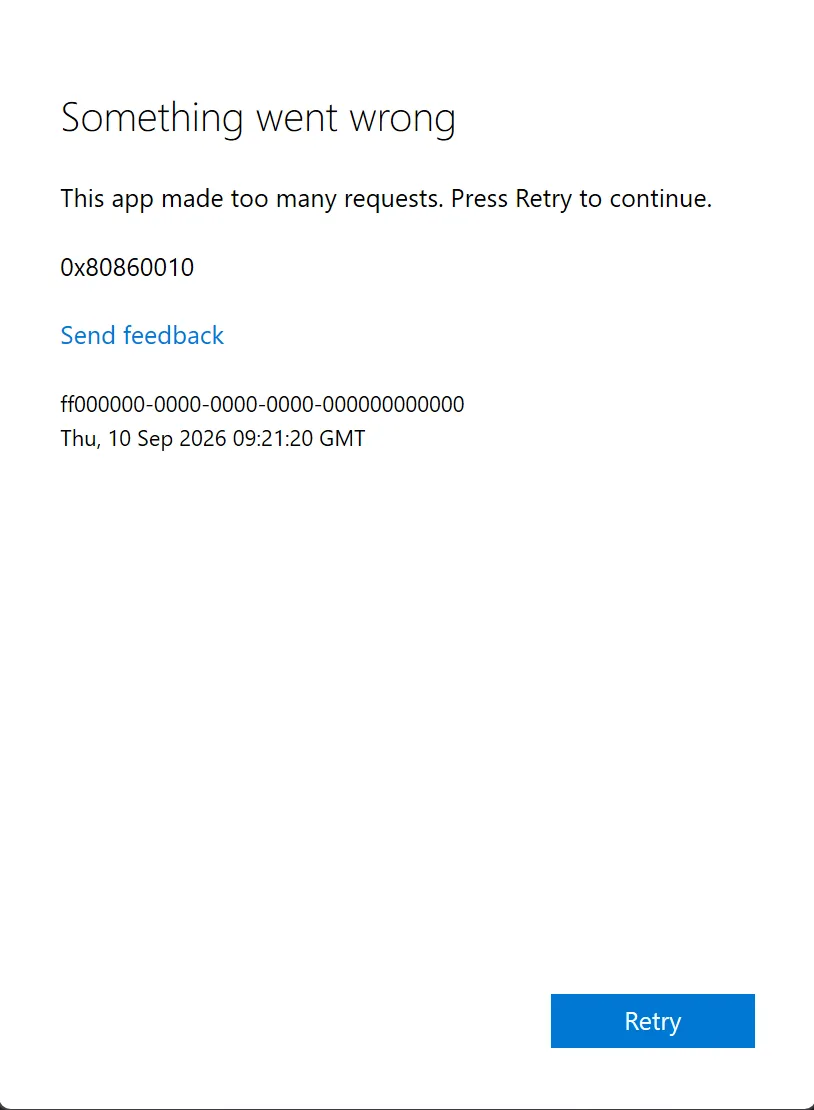
Written out, the message reads:
Something went wrong
This app made too many requests. Press Retry to continue.
0x80860010
Retry did nothing. Retry again did nothing. He had already reinstalled the app, cleared Edge’s cache, and run the Store troubleshooter. None of it helped, because none of it touched the actual cause.
The fix took about two minutes: clear the cached Microsoft credentials in Windows, then reboot. This post explains why “too many requests” is misleading here, and gives you three ways to clear the credential — a script, a safer targeted script, and a fully manual path.
Why “too many requests” is the wrong story
0x80860010 reads like a rate limit, and the message all but tells you to wait it out. That framing sends people down the wrong road — waiting, retrying, reinstalling.
What is really happening: Windows caches your Microsoft account tokens in Credential Manager. When one of those cached entries is stale or corrupt, the app keeps presenting the bad token to Microsoft’s sign-in service. The service rejects it, the app immediately retries with the same bad token, and after a few loops you trip a throttle. The throttle is real. The token behind it is the problem.
That is why pressing Retry makes things worse, not better. Each press feeds the same corrupt credential back into the loop.
This same corrupt-credential cause shows up under other codes too. If you have seen 0x8007000e or 0x80004005 while signing into your Microsoft account, the Store, or Xbox, the fix below clears all three.
The fix: clear cached Microsoft credentials with cmdkey
Windows ships cmdkey, a command-line tool for the credential store. You can list every saved credential and delete the stale Microsoft ones. This script does exactly that — it enumerates saved credentials and removes each target.
Create a file named clear-creds.bat, paste this in, and save:
@echo off
cmdkey.exe /list > "%TEMP%\List.txt"
findstr.exe Target "%TEMP%\List.txt" > "%TEMP%\tokensonly.txt"
FOR /F "tokens=1,2 delims= " %%G IN (%TEMP%\tokensonly.txt) DO cmdkey.exe /delete:%%H
del "%TEMP%\List.txt" /s /f /q
del "%TEMP%\tokensonly.txt" /s /f /q
echo All done
pause
Double-click it and let it run. Line by line:
cmdkey /listdumps every saved credential to a temp file.findstr Targetkeeps only theTarget:lines — the credential names.- The
FORloop reads each target name and runscmdkey /delete:on it. - The two
dellines clean up the temp files.
Then reboot. This step is not optional. Several people — my friend included — cleared the credentials, tried to sign in immediately, and still failed. A restart lets Windows drop the in-memory copies and fetch fresh tokens on next sign-in. After the reboot, sign back into Edge, the Store, or Xbox. It works.
Safer variant: delete only the Microsoft and Xbox credentials
If you would rather not clear unrelated logins, filter the list to the credentials that actually matter for this error. Microsoft account tokens are stored under targets that start with MicrosoftAccount, WindowsLive, or XblGrts (Xbox):
@echo off
for /f "tokens=1,2 delims= " %%G in ('cmdkey /list ^| findstr /I "MicrosoftAccount WindowsLive XblGrts"') do cmdkey /delete:%%H
echo Done. Reboot, then sign in again.
pause
Same idea, narrower blast radius. It touches only the account tokens tied to the sign-in loop and leaves your RDP and network-share credentials alone. Reboot afterward, same as before.
If the broad script fixed everything and the targeted one leaves you still stuck on the Xbox app specifically, the XblGrts entries are the ones to clear — the Xbox app keeps its own grant tokens separate from the main account token.
No scripts: clear it by hand in Credential Manager
If you would rather see what you are deleting, do it in the GUI. Same outcome, more clicks.
- Open Start, type
Credential Manager, open it. - Select the Windows Credentials tab.
- Under Generic Credentials, look for entries beginning with:
MicrosoftAccount:target=...WindowsLive:target=...XblGrts...(Xbox)
- Expand each one and click Remove.
- Reboot, then sign in again.
Removing these does not delete your Microsoft account or your data. It only clears the local cached tokens, which Windows rebuilds on your next sign-in.
Quick checklist
- Sign-in fails with
0x80860010“This app made too many requests” (or0x8007000e/0x80004005). - Stop pressing Retry — it feeds the loop.
- Run
clear-creds.bat(broad) or the targeted script, or remove theMicrosoftAccount/WindowsLive/XblGrtsentries in Credential Manager. - Reboot. Do not skip this.
- Sign into Edge, the Store, or Xbox again.
Takeaway
0x80860010 is not really a rate-limit problem, and no amount of waiting or reinstalling fixes it. A single corrupt token in Credential Manager keeps getting replayed until the sign-in service throttles the app. Clear the cached credentials with cmdkey, reboot so Windows forgets the in-memory copies, and sign in fresh.
If you remember one command from this post, make it this:
cmdkey /listThat is the credential store the error is stuck on. Once you clear it and reboot, the loop is gone.
Credit where it is due: the cmdkey approach comes from a Reddit comment by u/Fipdo that has quietly rescued a lot of people since 2023 — and still worked when my friend hit this in 2026.
More field notes when the next problem is specific enough to be useful.